

If your Android phone is starting to feel slow or storage is filling up for no obvious reason, cached data is often part of the issue.
Cache is basically temporary files apps store to load faster. It’s useful, but over time it can build up and take more space than you’d expect.
The good thing is—you can clear it without losing your personal data.
What cache actually is
When you use apps like Chrome, Instagram, or YouTube, they save bits of data in the background so they don’t have to reload everything every time. That includes images, login info, and other temporary files.
It makes things faster, but after weeks or months, those files can pile up.
How to clear cache on Android
There’s no single “clean all cache” button on most Android phones, so you usually do it per app.
Option 1: Clear cache for one app
This is the safest method.
- Open Settings
- Go to Apps
- Click to Mange Apps
- Pick the app you want
- Tap Storage
- Select Clear Cache
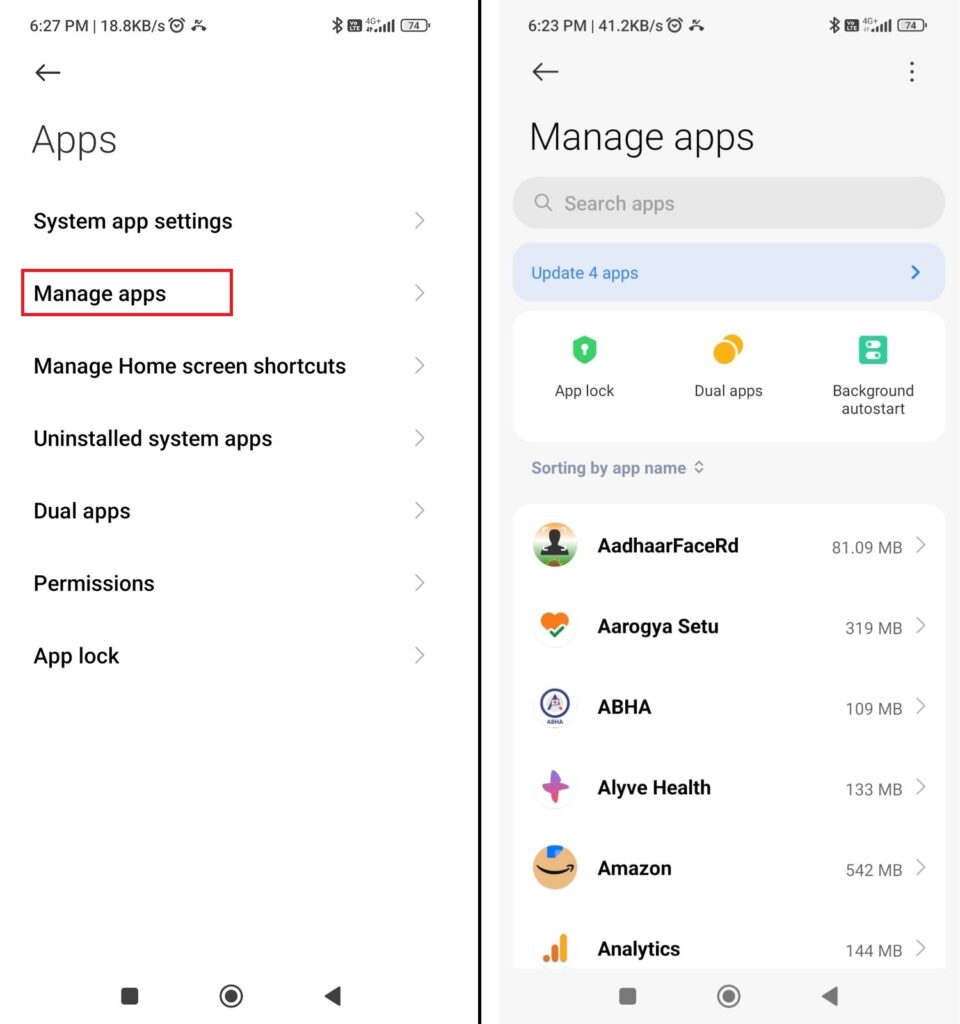
You can repeat this for apps that take up a lot of space, like social media apps or browsers.
Option 2: Use built-in storage tools
Some phones (like Samsung, Xiaomi, etc.) include a storage or device care feature.
These tools can help remove cached files and other junk in one go. The exact name depends on your phone, but you’ll usually find it under Storage or Battery and Device Care.
When you should clear cache
You don’t need to do this every day. It’s useful when:
- Your phone feels slower than usual
- Apps are misbehaving or crashing
- Storage is almost full
- A specific app isn’t loading properly
What happens after clearing cache
Nothing important is deleted.
Your photos, messages, and accounts stay exactly the same. The only thing you might notice is that apps take a bit longer to load the first time afterward, because they rebuild their temporary files.
A couple of things worth avoiding
- Don’t confuse Clear Cache with Clear Data (that can log you out and reset apps)
- Be careful with “cleaner” apps from the Play Store—most aren’t necessary
- Don’t overdo it; cache isn’t harmful on its own
A simple way to think about it
Cache is like clutter in a workspace. It helps you work faster at first, but every now and then, clearing it out keeps things tidy.
Final thought
Clearing cache won’t magically fix every performance issue, but it can help keep your phone running smoothly—especially if you haven’t done it in a while.
It’s a small habit that can make a noticeable difference over time.