Battery drain is one of the most common issues Android users face today. Even with modern devices running on advanced versions of Android, many users still notice their phone losing charge faster than expected.
In most cases, poor battery life is not caused by hardware failure. It usually comes down to settings, background activity, and usage habits. The good news is that you can significantly improve battery life without replacing your phone.
This guide explains proven, real-world methods to extend Android battery life effectively.
Why Android Battery Drains Quickly
Battery drain usually happens due to a combination of:
- Background apps consuming power
- High screen brightness
- Location services running continuously
- Poorly optimized or outdated apps
- Weak mobile signal forcing extra power usage
- Heavy tasks like gaming or video editing
Modern Android systems include power-saving features, but apps can still bypass restrictions if not managed properly.
Quick Fix: Improve Battery Life Instantly
If your battery is draining fast right now, start here:
- Lower screen brightness
- Turn on Battery Saver mode
- Disable Bluetooth and GPS when not needed
- Close heavy apps running in background
- Switch to Wi-Fi instead of mobile data
These changes often show immediate improvement in battery performance.
1. Reduce Screen Brightness and Display Usage
Your display is the single biggest battery consumer.
Best settings:
- Enable adaptive brightness
- Keep brightness between 30–50%
- Reduce screen timeout to 30–60 seconds
If your device supports AMOLED display, enabling dark mode can further reduce power usage.
2. Control Background App Activity
Many apps continue running even when not in use, consuming battery silently.
How to fix:
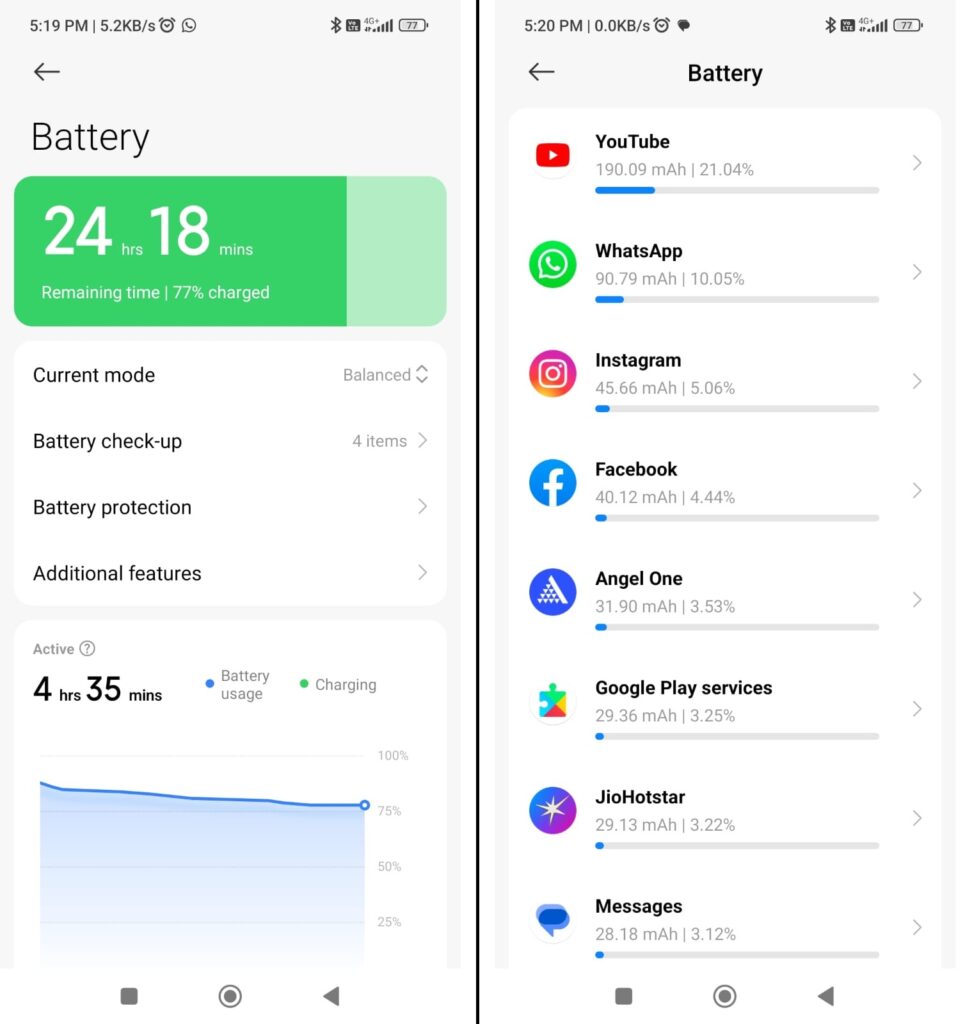
- Go to Settings → Battery → Battery usage
- Identify high-drain apps
- Restrict background activity for non-essential apps
Social media apps are usually the biggest contributors.
3. Turn Off Unused Connectivity Features
Wireless services constantly search for signals, which drains battery.
Disable when not needed:
- Bluetooth
- Location services (GPS)
- Mobile data (when on Wi-Fi)
- Hotspot
Location services set to “Always allow” can significantly impact battery life.
4. Keep Apps and System Updated
Outdated apps often contain bugs that increase battery consumption.
Regular updates help:
- Improve optimization
- Fix background drain issues
- Enhance system efficiency
Always update both apps and system software.
5. Use Battery Saver Mode Effectively
Battery Saver mode helps extend usage time by limiting background activity.
It typically:
- Reduces background syncing
- Limits visual effects
- Optimizes CPU performance
Use it during travel or when battery drops below 30%.
6. Remove Unused Apps
Every installed app adds background processes and notifications.
Best practice:
- Uninstall apps you haven’t used in 2–3 weeks
- Avoid duplicate apps performing similar tasks
This reduces hidden battery consumption.
7. Restart Your Phone Regularly
Restarting helps clear temporary system processes that may drain battery.
Recommended:
- Restart every 2–3 days for best performance
8. Avoid Common Battery Myths
Some widely believed tips are outdated:
- ❌ Closing all apps improves battery (not always true)
- ❌ Task killer apps help performance (often harmful)
- ❌ Constantly turning Bluetooth off/on saves significant power
Modern Android memory management is already optimized.
9. Check Battery Usage Statistics
Use built-in Android tools to monitor battery consumption:
- Identify apps using excessive power
- Track unusual background activity
- Adjust settings accordingly
This is one of the most effective optimization tools.
10. Long-Term Battery Health Tips
To maintain battery health over time:
- Avoid overheating your device
- Don’t let battery drain to 0% frequently
- Avoid constant overnight overcharging
- Use certified chargers and cables
These habits improve long-term battery lifespan.
Best Strategy for Android Battery Optimization
The most effective approach is a combination of:
Reduce usage → Optimize settings → Maintain healthy habits
This ensures both immediate improvement and long-term stability.
Frequently Asked Questions (FAQs)
Why is my Android battery draining so fast?
Fast battery drain is usually caused by background apps, high brightness, location services, or poorly optimized apps.
Does dark mode really save battery?
Yes, on AMOLED displays dark mode reduces power consumption because black pixels use less energy.
Does closing apps save battery?
Not always. Android manages background apps efficiently, and force closing can sometimes increase battery usage.
How can I check which app is draining my battery?
Go to Settings → Battery → Battery usage to view detailed app-level consumption.
Is Battery Saver mode safe to use all the time?
Yes, but it may limit performance and background syncing. It’s best used when battery is low.
Does restarting the phone improve battery life?
Yes, restarting clears background processes and can reduce temporary battery drain.