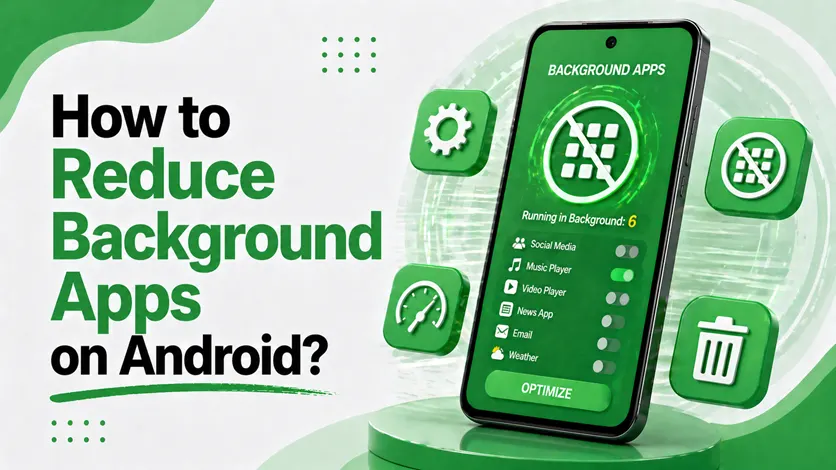
If your Android phone has started feeling slower than usual, background apps could be part of the reason.
Many apps continue running even after you’ve finished using them. Some check for updates, sync data, refresh content, or send notifications. While a few background processes are necessary, having too many active at once can use extra RAM, drain battery life, and sometimes cause your phone to run warmer than normal.
The good news is that you don’t need any special apps to manage this. Android already includes tools that help control background activity.
What Are Background Apps?
Background apps are applications that continue performing tasks when they’re not open on your screen.
For example, messaging apps need to run in the background so they can deliver notifications. Email apps may periodically sync new messages, and social media apps often refresh content automatically.
Problems usually start when dozens of apps are doing these tasks at the same time.
1. Close Apps You’re No Longer Using
One of the simplest ways to free up memory is to close apps you haven’t used in a while.
Open the Recent Apps screen and swipe away applications that are no longer needed. This won’t magically speed up every phone, but it can help if several heavy apps have been left open.
Keep in mind that Android is designed to manage memory efficiently, so there’s no need to constantly clear every app from the recent apps menu.
2. Restrict Background Activity for Specific Apps
If a particular app seems to consume a lot of battery or resources, you can limit its background activity.
On most Android phones:
- Open Settings.
- Tap Apps.
- Select the app you want to manage.
- Open Battery settings.
- Choose the option to restrict background activity.
This is especially useful for apps that you don’t use often but still appear in battery usage reports.
3. Turn On Battery Optimization
Most Android devices include battery optimization features that automatically manage background processes.
To enable it:
- Open Settings.
- Go to Battery.
- Look for Battery Optimization or Adaptive Battery.
- Make sure optimization is enabled.
Android will learn which apps you use regularly and limit activity from those you rarely open.
For better battery control, you can also follow: how to improve battery life on Android (complete guide)
4. Disable Auto-Start for Unnecessary Apps
Some apps launch automatically whenever your phone starts up. Over time, this can increase memory usage and slow down boot times.
Depending on your device manufacturer, you may find an Auto-start or Special App Access section in Settings.
Review the list and disable automatic startup for apps that don’t need to run immediately after rebooting.
5. Uninstall Apps You No Longer Use
It’s easy to forget about apps that were installed months ago and never opened again.
Unused apps can still take up storage space, download updates, and occasionally run background services. Removing them reduces clutter and helps Android manage resources more effectively.
A quick review of your installed apps every few months can make a noticeable difference.
If your phone storage is also full, you can fix it by following
phone storage full? how to free up space fast (proven methods that work)
6. Use Developer Options Carefully
Advanced users can limit the number of background processes through Android’s Developer Options.
To access it:
- Enable Developer Options from your device settings.
- Open Developer Options.
- Find Background Process Limit.
Unless you understand the trade-offs, it’s best not to set aggressive limits. Restricting background processes too much can cause apps to behave unexpectedly.
Common Mistakes to Avoid
Many users try to improve performance by installing “phone cleaner” or “RAM booster” apps. In most cases, these apps provide little benefit and can sometimes make performance worse.
It’s also a good idea to avoid force-stopping important system apps unless you know exactly what they do.
Another common mistake is disabling background activity for messaging, email, or security apps and then wondering why notifications stop arriving.
Why Managing Background Apps Matters
Reducing unnecessary background activity can help:
- Improve battery life
- Free up system memory
- Reduce overheating
- Make app switching feel smoother
- Improve overall device responsiveness
The impact won’t be dramatic on every phone, but on older devices or phones with limited RAM, the difference can be noticeable.
If your phone already feels slow, you can follow How to Make Your Android Phone Faster (Fix Lag, Reduce Slowdowns & Boost Performance) for a complete solution.
Final Thoughts
Background apps are a normal part of how Android works, but too many unnecessary processes can affect performance over time.
Instead of installing third-party optimization tools, start with Android’s built-in controls. Restrict resource-heavy apps, remove software you no longer use, and enable battery optimization features.
A few small adjustments can help your phone feel faster, last longer on a charge, and stay responsive throughout the day.