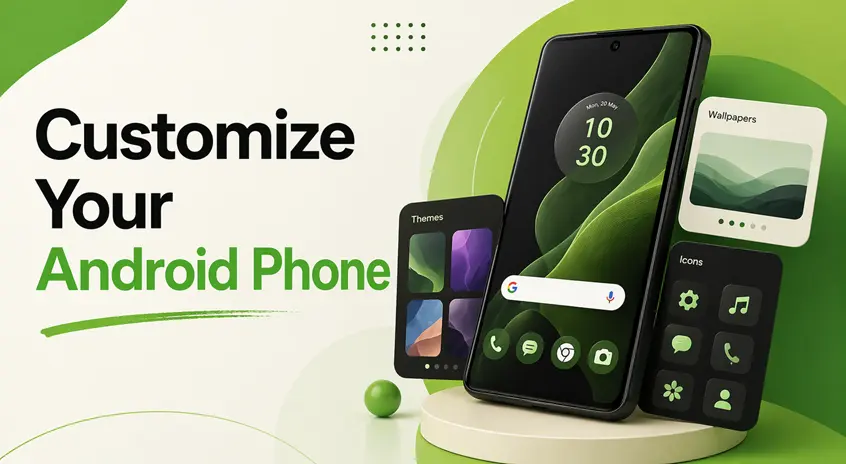
Does your Android phone feel boring or cluttered?
You’re not alone. Most users stick with the default setup, even though Android offers something powerful — complete customization freedom.
The problem is, many people don’t know where to start. They install random apps, add too many widgets, and end up with a messy home screen.
👉 The solution is simple: follow a clear system.
In this step-by-step guide, you’ll learn how to customize your Android phone properly, whether you want a clean, minimal look or a premium iPhone-style setup.
👉 If you want to explore more tools and ideas to improve your setup, check the best Android personalization apps (customize your phone like a pro) for a complete customization experience.
⚡ Quick Setup (Do This First)
If you want fast results, follow these steps:
- Install a launcher (Nova or Niagara)
- Apply a clean icon pack
- Set a minimal wallpaper
- Add 1–2 useful widgets
👉 This alone can completely transform your phone in minutes.
🎨 Step 1: Choose a Clear Style (Don’t Skip This)
Before installing anything, decide how you want your phone to look.
Popular styles:
- 🌙 Minimal dark theme (clean and modern)
- 🌸 Soft pastel look (calm and aesthetic)
- ⚡ Neon/cyber style (bold and gaming feel)
- 🌿 Natural tones (simple and fresh)
👉 Why this matters:
Mixing styles makes your phone look messy. A single theme keeps everything clean and professional.
🧩 Step 2: Install a Launcher (Core of Customization)
A launcher changes how your home screen works and looks.
Popular options:
- Nova Launcher → Full customization
- Niagara Launcher → Minimal and clean
- Microsoft Launcher → Simple and organized
How to set it up:
- Install the launcher from Play Store
- Open it and select Set as Default Launcher
- Adjust layout, grid size, and animations
👉 A good launcher is the foundation of any customization setup. It lets you control layout, gestures, and animations for a completely new look and feel.
To explore the best options, you can check the best launcher apps for Android (complete UI transformation guide) and choose one that fits your style and performance needs.
🎯 Step 3: Apply Icon Packs (Small Change, Big Impact)
Icons play a huge role in your phone’s appearance.
What to do:
- Search for:
- Minimal icon pack
- Line icons
- iOS-style icons
- Apply them through your launcher settings
👉 Icons play a major role in how your home screen looks. Using a consistent icon pack can instantly make your setup feel clean and professional.
You can explore the best icon pack apps for Android (make your home screen look professional and stylish) to match your theme and create a more polished design.
📊 Step 4: Add Widgets (Keep It Minimal)
Widgets make your home screen functional — but too many ruin the design.
Recommended apps:
- KWGT Kustom Widget Maker
- WidgetClub
Best widgets to add:
- Clock
- Weather
- Battery
- Calendar
👉 Ideal setup:
Use only 1–3 widgets for a clean look.
🖼️ Step 5: Set the Right Wallpaper
Your wallpaper defines the entire vibe of your phone.
Best approach:
- Home screen → Simple or subtle wallpaper
- Lock screen → Clean, high-quality image
Apps you can use:
- Backdrops
- Walli
👉 Avoid overly bright or busy wallpapers – they reduce clarity. To make your home screen more dynamic, you can use the best free live wallpaper apps for Android for a modern and visually appealing look.
🍎 Step 6: Make Your Android Look Like iPhone (Optional)
If you prefer a clean and simple look, you can replicate the iPhone style.
Steps:
- Install an iOS-style launcher
- Apply iOS-style icon pack
- Use a simple grid layout
Suggested layout:
- Top → Calendar, Settings
- Middle → Social apps
- Bottom → Phone, Messages, Browser, Music
👉 Keep only 4 apps in dock for a clean feel.
🧠 Step 7: Remove Clutter (Most Important Step)
This is where most people fail.
What to do:
- Remove unused apps
- Reduce home screens to 1–2 pages
- Hide unnecessary apps
👉 Why it matters:
Less clutter = more premium look.
⚠️ Common Mistakes to Avoid
Avoid these common mistakes:
- Installing too many widgets
- Mixing multiple styles
- Using too many animations
- Keeping unnecessary apps on home screen
👉 These mistakes make your phone look messy instead of stylish.
👍 My Recommendations
If you want the best setup, keep it simple:
- Launcher: Nova or Niagara
- Icons: Minimal or iOS-style
- Widgets: 1–2 only
- Wallpaper: Clean and simple
👉 This setup works for almost everyone.
⚡ Pro Tips
- Stick to one theme
- Keep empty space — it improves design
- Avoid heavy animations
- Update your layout slowly (not daily)
- Use dark mode for a premium feel
👉 Simplicity always looks better.
🧠 Best Overall Strategy
Follow this system:
Step 1: Choose
Pick a single style.
Step 2: Build
Set launcher, icons, wallpaper.
Step 3: Optimize
Add minimal widgets and remove clutter.
Step 4: Maintain
Don’t keep changing your setup daily.
👉 Consistency creates a polished look.
🎯 Final Thoughts
Android customization can make your phone look amazing — but only if done correctly.
You don’t need dozens of apps or complex setups.
👉 The real secret is simplicity.
Keep your setup clean, stick to one style, and avoid clutter. That’s what makes your phone feel premium and well-designed.