Is your phone charging slower than usual… but you’re not sure why?
Sometimes the issue isn’t your battery — it could be your charger, cable, or even background apps affecting charging speed.
👉 That’s where the Ampere app helps.
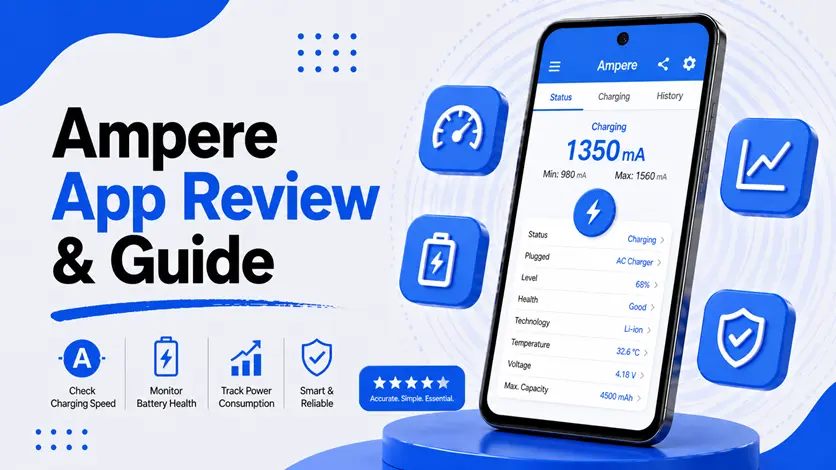
Instead of guessing, Ampere shows you real-time charging current (mA) so you can understand exactly what’s happening with your device.
In this guide, you’ll learn how to use Ampere properly, how to read its values, and how to fix common charging issues.
⚡ What is Ampere & Why It’s Useful
Ampere is a lightweight Android app that measures the charging or discharging current of your phone.
👉 It helps you:
- Check charging speed
- Test charger and cable quality
- Monitor battery temperature
- Detect charging issues
👉 If your phone feels slow overall, it’s also worth checking the guide to make your Android phone faster and boost performance, since battery and performance are closely connected.
🔧 How to Use Ampere (Step-by-Step Guide)
📲 1. Install the App
- Go to Play Store
- Search “Ampere”
- Install and open
👉 No setup required — it works instantly.
🔌 2. Plug in Your Charger
Once you connect your charger:
- App starts measuring automatically
- Shows values in mA (milliamps)
📊 3. Understand the Interface
You’ll see:
- Charging current (mA)
- Battery status
- Temperature
- Voltage
👉 Focus mainly on mA value — that’s the most important.
📊 How to Read Ampere Values (Very Important)
This is where most users get confused.
⚡ Charging Speed Guide
👉 General reference:
- 500 mA → Slow charging
- 1000–1500 mA → Normal charging
- 2000–2500+ mA → Fast charging
🧠 What It Means
- Low value → weak charger / cable / background usage
- High value → efficient charging
👉 If your battery drains fast even with good charging, check how to improve battery life on Android for better results.
⚠️ Common Problems in Ampere (And Fixes)
❌ 1. Negative Value (-mA)
👉 Means:
- Your phone is discharging instead of charging
🔧 Fix:
- Use better charger
- Close background apps
- Check cable
🔄 2. Charging Value Keeps Fluctuating
👉 Possible reasons:
- Loose cable
- Poor-quality adapter
- Background apps consuming power
🔧 Fix:
- Use original charger
- Test different cable
- Restart phone
🔌 3. Charger vs Cable Issue
👉 Many people blame battery, but:
- Cheap cable = slow charging
- Weak adapter = low current
👉 Ampere helps you identify which one is the problem.
🔍 Accuracy Limitations (IMPORTANT)
Ampere is helpful — but not perfect.
⚠️ Things to Know
- Not 100% accurate
- Values may vary across devices
- Depends on phone hardware support
👉 Use it as a reference tool, not exact measurement.
👉 Also, if your phone has too much junk data, it can affect performance — you should regularly clear cache on Android to keep your system optimized.
🆚 Ampere vs Other Battery Apps
🔋 Ampere vs AccuBattery
- Ampere → real-time charging speed
- AccuBattery → long-term battery health
👉 Best use:
- Ampere = quick check
- AccuBattery = detailed analysis
📱 Ampere vs Battery Guru
- Ampere → simple & fast
- Battery Guru → advanced tracking
👉 Battery Guru gives:
- Charging cycles
- Usage insights
- Recommendations
👉 If you want more options, you can explore the best apps to check battery health and charging speed on Android for a complete comparison.
👍 When You Should Use Ampere
Use Ampere when:
- Charging feels slow
- Battery drains quickly
- You change charger or cable
- Phone heats while charging
👉 It helps diagnose problems quickly.
⚡ Pro Tips (Real-World Use)
- Test different chargers using Ampere
- Remove phone case if overheating
- Avoid using phone while charging
- Keep background apps minimal
👉 These improve charging efficiency.
🧠 Best Strategy to Improve Charging Performance
Follow this:
Check → Fix → Maintain
- Check with Ampere
- Fix charger/cable issues
- Maintain good habits
👉 This keeps your battery healthy.
🎯 Final Thoughts
Ampere is a simple but powerful tool that helps you understand how your phone charges.
👉 Instead of guessing, you can make data-driven decisions to improve battery performance and charging speed.
👉 Use it regularly, combine it with good habits, and your phone will perform much better over time.