Nothing is more frustrating than lag during a crucial moment in a game.
You aim… you shoot… and suddenly — delay, stutter, or frame drop.
👉 This isn’t just about your phone — gaming lag happens due to FPS instability, network issues, and system bottlenecks.
👉 If you’re not sure what’s actually causing lag on your device, it’s important to understand the root problem first. You can explore why games lag on Android (top reasons explained) to identify whether it’s FPS drops, network issues, or hardware limitations.
👉 If you play competitive titles, try testing improvements with the best multiplayer competitive games for Android (online & offline) where smooth performance really matters.
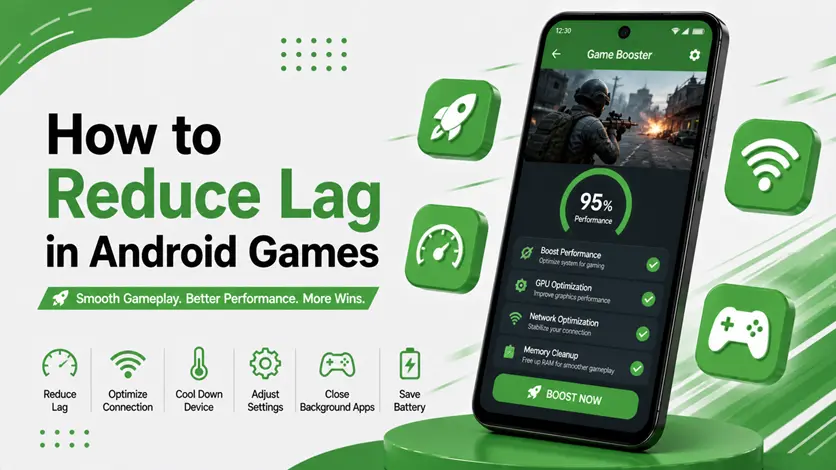
In this guide, you’ll learn practical, gaming-specific ways to reduce lag and improve gameplay instantly.
⚡ Quick Fix (Instant Lag Reduction)
Before starting a game:
- Switch to stable Wi-Fi
- Restart your device
- Lower in-game graphics
- Turn on Game Mode
👉 These steps give immediate improvement.
🎮 How to Reduce Lag in Android Games
📶 1. Fix Network Lag (Ping Issues)
Not all lag is device-related — sometimes it’s your internet.
👉 Signs:
- Delay in actions
- Players teleporting
- High ping
🔧 Fix:
- Use Wi-Fi instead of mobile data
- Stay close to router
- Avoid network-heavy apps
👉 Network lag = biggest hidden issue
🎯 2. Optimize In-Game Settings (FPS Stability)
High graphics settings often cause FPS drops.
👉 Best setup:
- Graphics → Medium
- Frame Rate → High
- Anti-aliasing → Off
👉 Smooth FPS > High graphics
⚡ 3. Use Game Booster Apps
Game booster apps help optimize performance in real time.
👉 They:
- Free RAM
- Stabilize FPS
- Reduce interruptions
👉 You can explore the best game booster apps for Android (boost FPS & reduce lag) for better results.
🎮 4. Use Game Launcher for Resource Control
Game launchers optimize system resources before gameplay.
👉 They:
- Block notifications
- Improve CPU usage
- Enhance stability
👉 For best tools, check the best game launcher apps for Android (boost performance & FPS).
🎧 5. Reduce Input Lag (Touch Delay)
Input lag is when your touch response feels delayed.
👉 Fix:
- Turn off screen overlays
- Disable gesture navigation during gaming
- Use high touch sampling settings (if available)
👉 Important for FPS games
🔄 6. Restart Before Long Gaming Sessions
Simple but powerful.
👉 Restarting:
- Clears RAM
- Resets processes
- Improves stability
⚠️ Common Mistakes Gamers Make
- Playing on unstable network
- Using max graphics blindly
- Ignoring input lag
- Running background downloads
👉 These cause unnecessary lag
👍 My Recommendations
For best results:
- Use stable internet
- Balance graphics and FPS
- Optimize before each session
👉 Small changes = big improvement
🧠 Best Strategy
Follow this:
Stabilize → Optimize → Play
- Stabilize network
- Optimize settings
- Play smoothly
🎯 Final Thoughts
Lag in games is not always about weak hardware — it’s often about poor optimization and network issues.
👉 Fix the right things, and your gaming experience will improve instantly.